On this page · jump to a step
ChatGPT can use relayard to request the native build and SwiftUI preview tools actually available and authorized in your environment.Confirm success from the terminal operation state, build logs and returned image separately, not tool names or an online indicator.
Who is it for, and what is required?
Developers checking whether AI changes build and whether a SwiftUI screen meets its goal. You need the app, correct project and scheme, discovered build / preview tools, execution permission and access to the relevant image output directory. Your client and model must support the tools and returned content.
Documented capabilities and results to verify
| Capability | Conditions and verification |
|---|---|
| Read and edit | Authorize the project and tools; inspect actual file contents and diffs. |
| Native build | Available build tools and execution permission; inspect terminal logs. |
| SwiftUI preview | A renderable preview, image permissions and client result delivery. |
| Simulator | Also requires an active pairing, target device and actual tools. |
This is a capability and requirements summary, not a list of Mac tests passed in this session. See evidence status and reproduction steps
When is this a poor fit?
A text-only client, an Xcode environment without the necessary native tools or missing execution permission cannot complete an actual build through this workflow. Without a renderable preview or an image returned to the client, record the build outcome without claiming visual verification.
The goal: a result you can inspect
A completed build has a terminal status and build logs. A preview also needs an image that the client actually receives and inspects. Submission is not completion. A file path is not an image.
1. Prepare the project and permissions
Open the bound project in Xcode, select the appropriate scheme and destination, and save editor changes. Confirm relayard is connected, unpaused and authorized for the execution capabilities you need.
Ask the client to read status and the available tool catalog first. Call only tools that are actually exposed and authorized; do not assume every Xcode release provides identical capabilities.
2. Build and follow the operation
Request a build through an available native tool such as BuildProject. If it returns an operation_id, use the available operation query tool until you have a completed, failed or explicitly interrupted result.
Inspect the actual errors in the build log. An accepted request is not a build result. If the outcome is uncertain, do not automatically replay a write or execution request.
3. Render an existing SwiftUI preview
Locate a source file with an existing preview, then render it using an available native tool such as RenderPreview. Wait for the result and confirm that image content actually reaches the client.
If you receive only a local path, check the image output directory permission and return path. Scope image access to the needed directory, rather than the entire home directory or disk.
4. Report build and preview separately
- Were the project, scheme and destination correct?
- Did the build finish, and what errors did the log report?
- Was an image actually returned and inspected?
- Can the image be associated with this operation? Mark its source as unverified if that cannot be established.
A verification prompt to reuse
Check the selected project, permissions and available native tools.
Use the available build tool to build the selected scheme.
If an operation ID is returned, follow it to a terminal result and inspect the build log.
Find an existing SwiftUI preview and render it using an available tool.
Inspect the actual returned image. A path or operation ID is not image evidence.
Report build and preview results separately. Preserve any error; do not claim a pass if the image is missing.
Do not change source files.
Simulator verification is a separate step
A rendered preview does not prove that the app ran in Simulator. Running, screenshots and interactions depend on local pairing, the target device, expiry and available tools. Verify that path separately when needed.
REAL EXAMPLE OUTPUT
See the result.
Then take the next step.
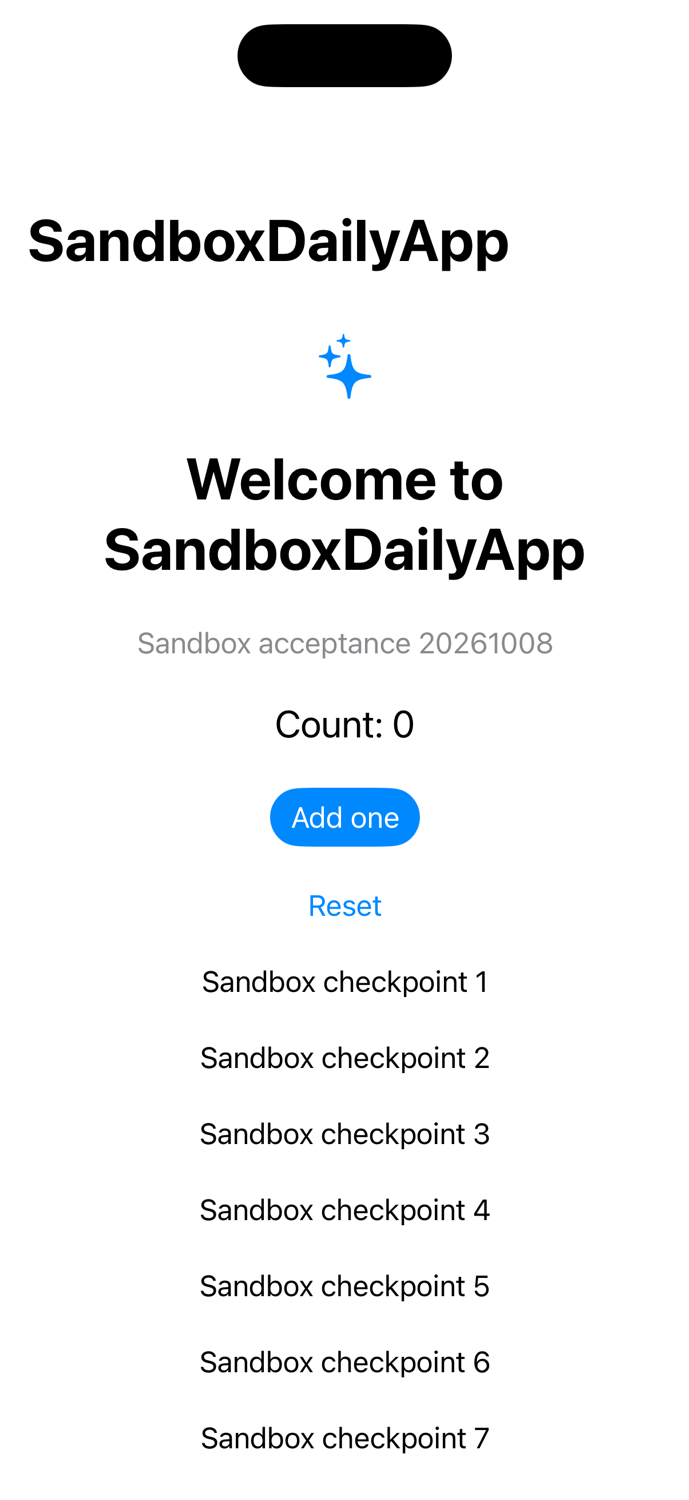
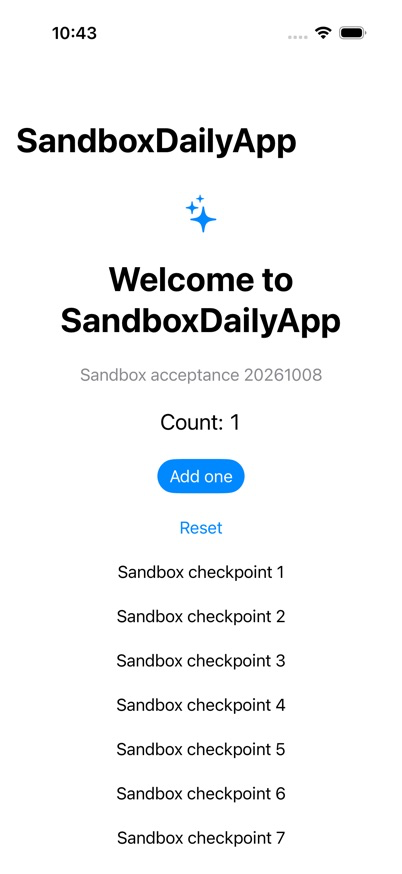
The left image is a SwiftUI preview returned by Xcode. The right image shows the example project in Simulator after a tap, with its counter at 1. Both come from real development checks.
SandboxDailyApp example · October 8, 2026. Saved Preview and Simulator images from a development session. Open the originals to inspect them; this is not a live view.
Documentation updated: 2026-10-08