Read and edit source
Understand the existing code, then make a focused change. Enable read and edit access separately.
Let a Pro model in Chat read your code, implement changes and verify builds in the same Xcode project. Built for feature iterations and fixes in an existing iOS or macOS app.
Public download not yet available · Prepare your setup
A Codex limit does not exhaust Chat Pro.Its allowance is separate; you still need remaining Chat Pro usage and support for the required tools. Official usage guide
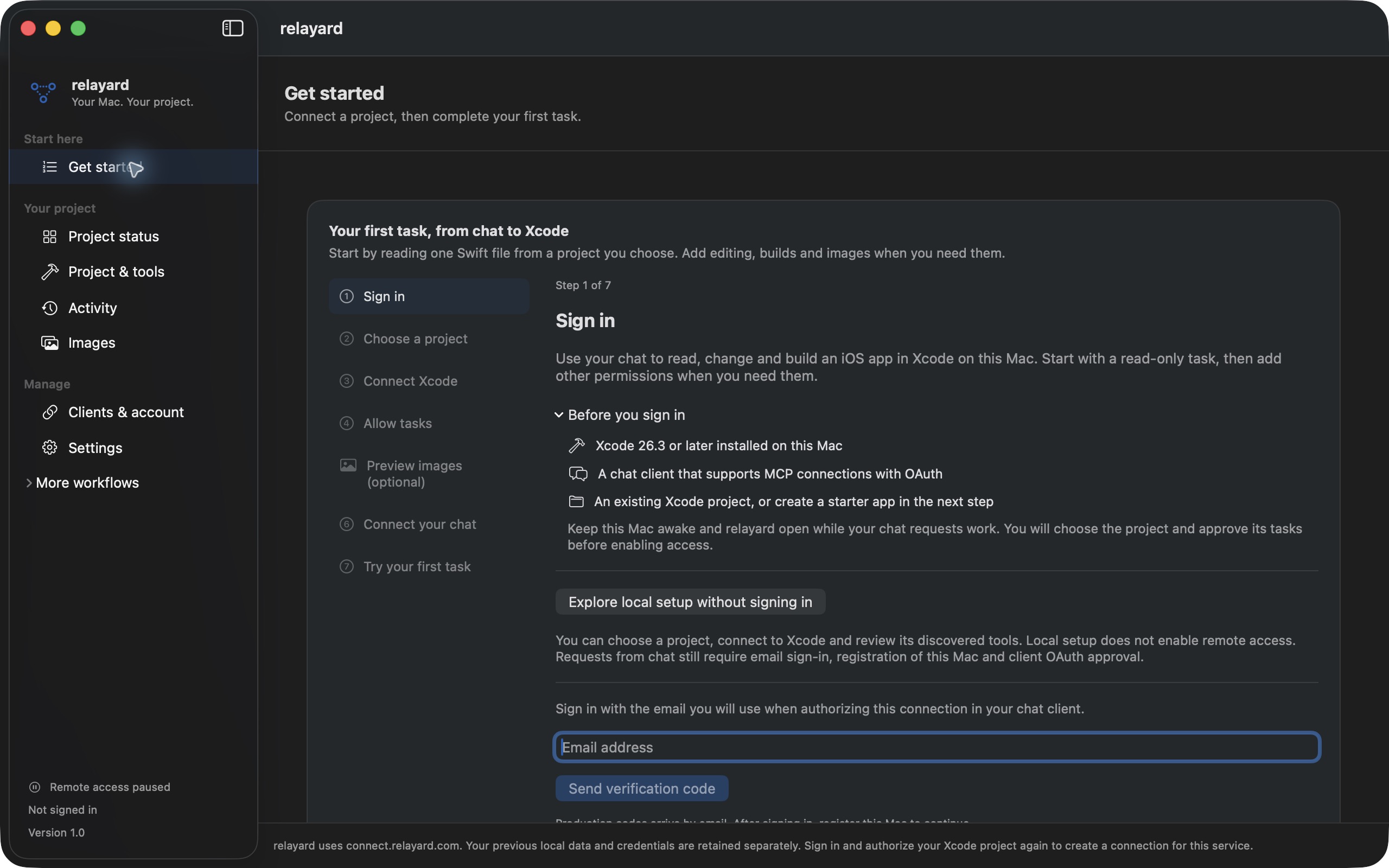
GET CONNECTED
Save your edits, choose a project and approve access. Verify an actual read before adding edits, builds and images.
Follow Get started, or connect an existing project in Project & tools.
Copy the project MCP URL and confirm the project and permissions through OAuth.
Ask for one Swift file and review the actual returned content in Activity.
INSIDE RELAYARD
Explore the actual app screens for projects, client access and host settings. Open any screenshot at full size.
Seven steps connect account setup, project selection, Xcode, permissions and your chat. Make the first task a read of one Swift file.
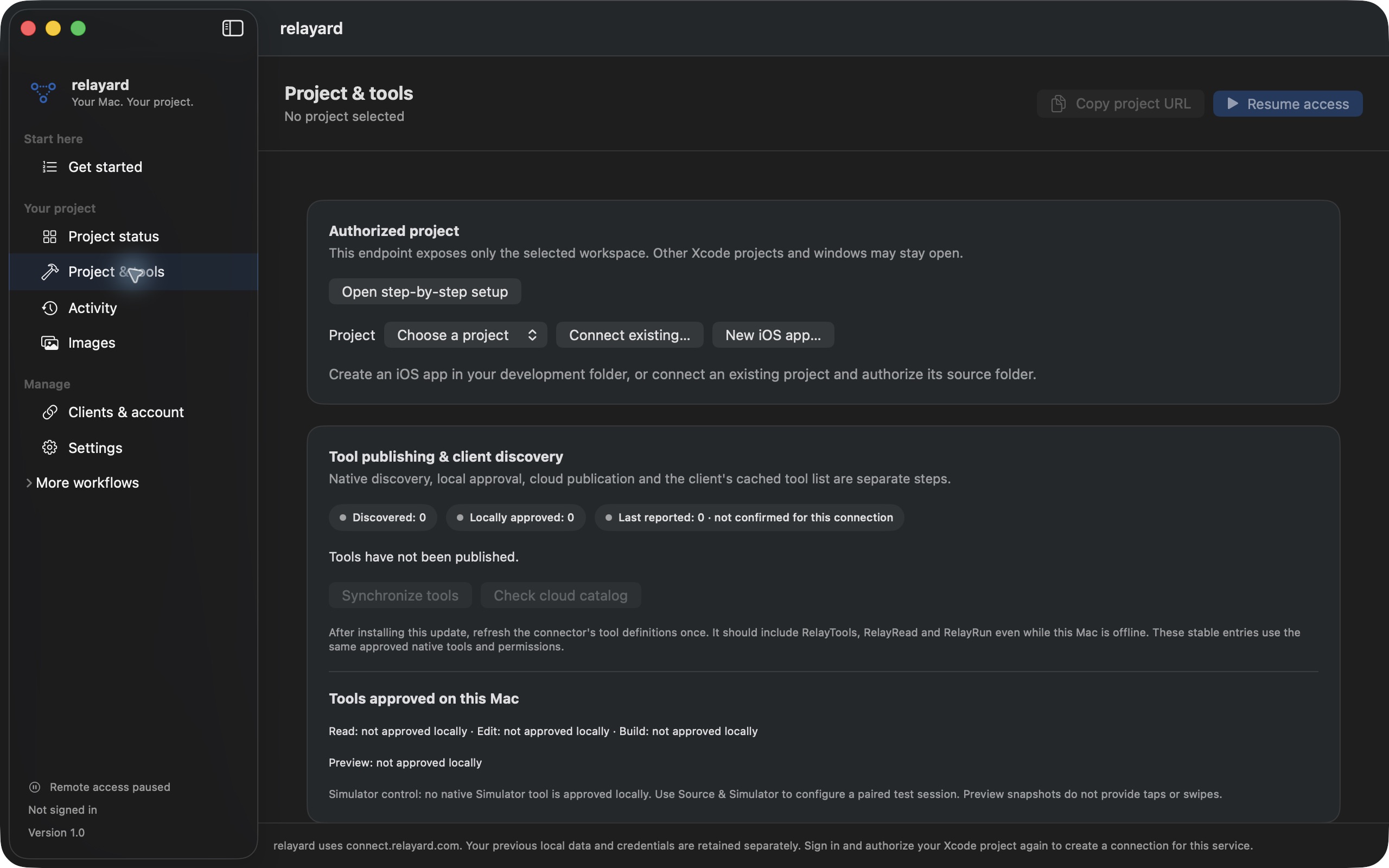
Connect an existing project or create a SwiftUI starter. Discover the tools in your Xcode, then review the read, edit and execution capabilities you need.
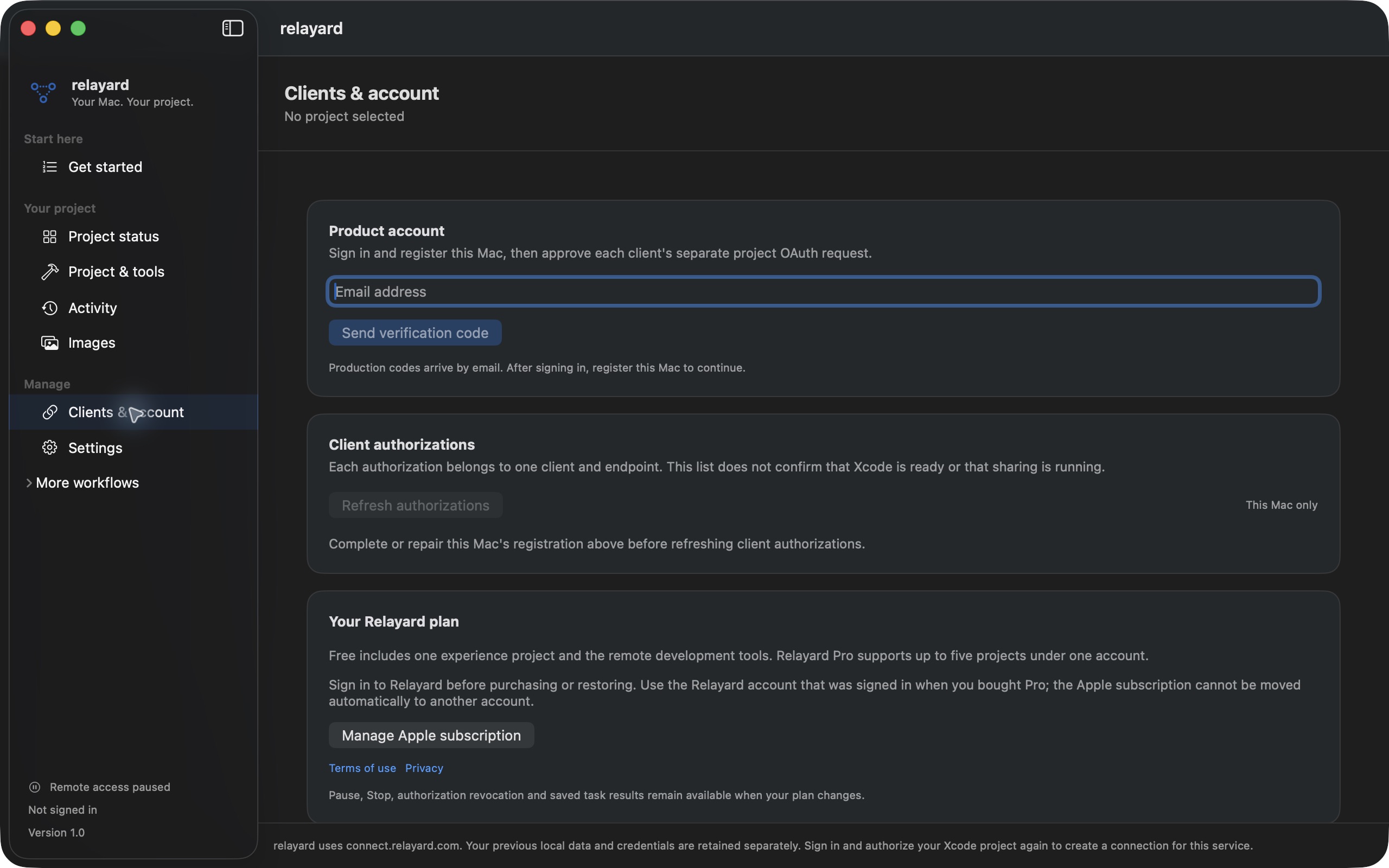
Signing in and authorizing a client are separate steps. Use the project URL from the app for OAuth, then manage the client’s access here.
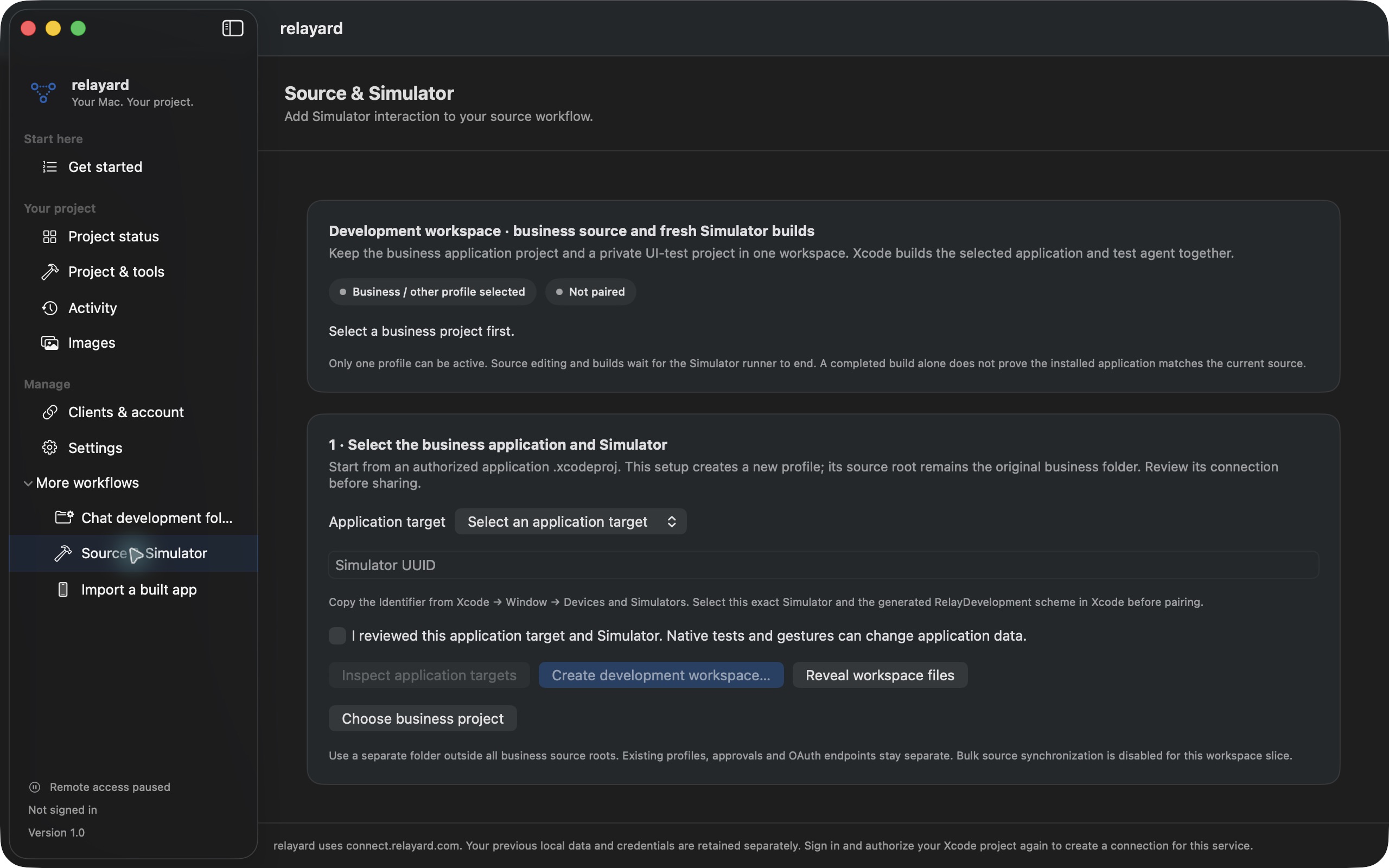
Under More workflows, choose an app target and a specific Simulator. Review a separate development workspace and pair a session for install, launch, taps, swipes and screenshots.
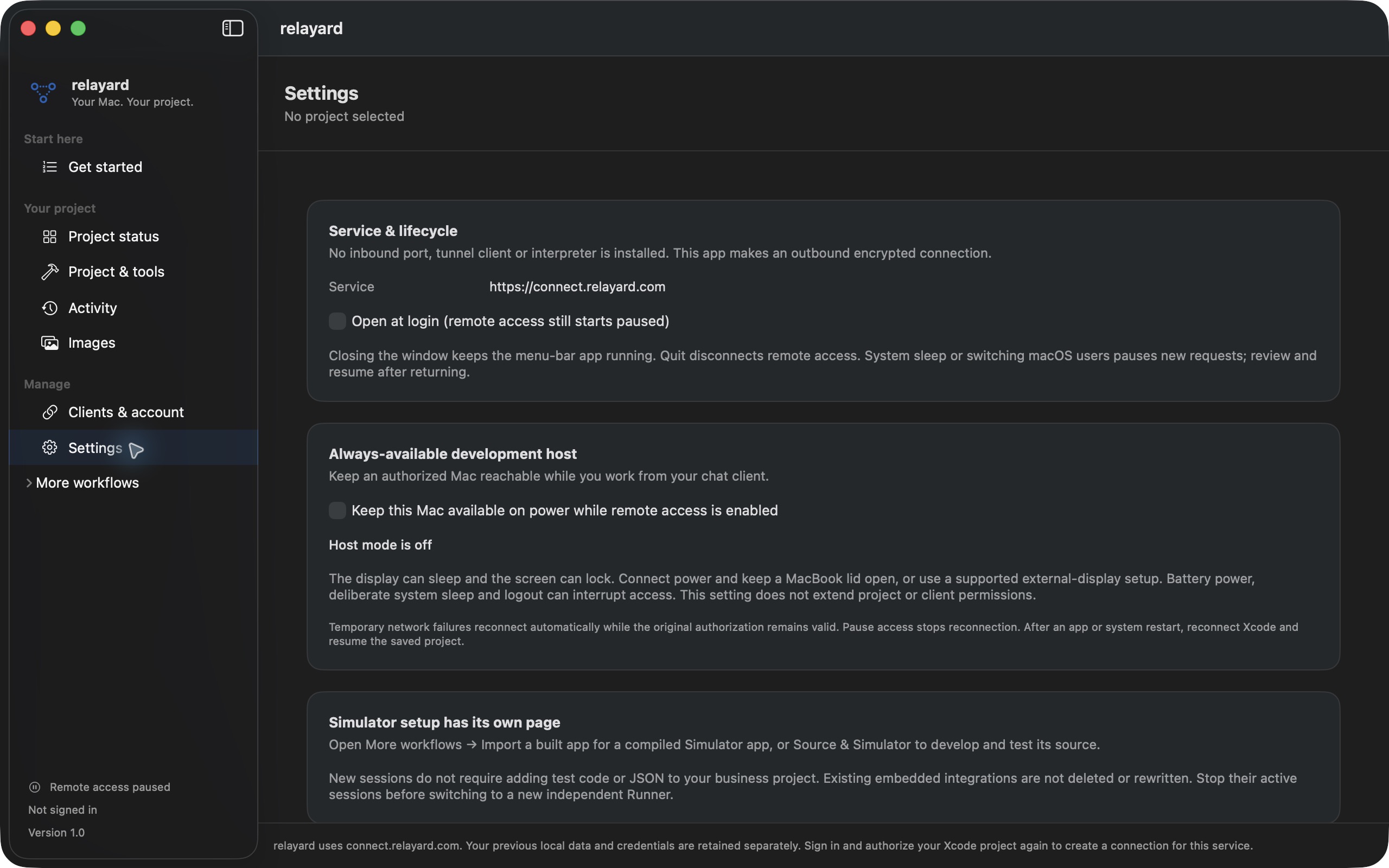
Opt in to host mode in Settings. With power connected and remote access enabled, the display can sleep and the screen can lock. Pause remains in your control.
Understand the existing code, then make a focused change. Enable read and edit access separately.
Use the native tools available in Xcode. Inspect the returned completion state and logs.
Get rendered previews. Find saved images in Images and their corresponding operations in Activity.
REAL EXAMPLE OUTPUT
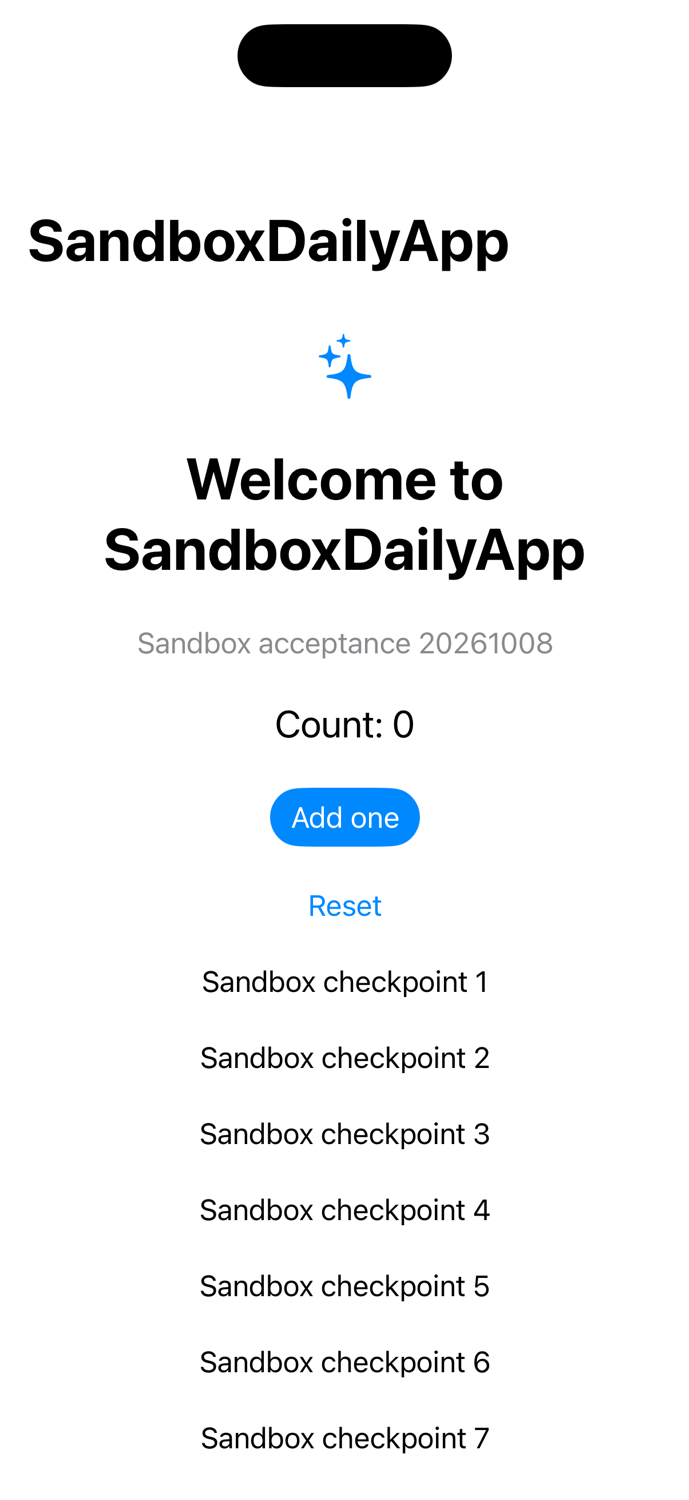
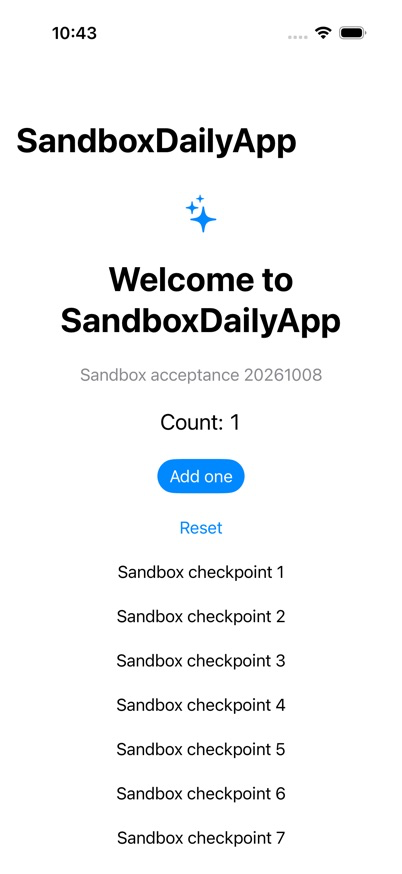
The left image is a SwiftUI preview returned by Xcode. The right image shows the example project in Simulator after a tap, with its counter at 1. Both come from real development checks.
SandboxDailyApp example · October 8, 2026. Saved Preview and Simulator images from a development session. Open the originals to inspect them; this is not a live view.
YOU CHOOSE THE ACCESS
Your project and native builds run on your Mac. Requested code, logs and images pass through the hosted relay to the client you authorize.
Understand permissions and data flowBegin with read-only access. Review edit, execution and image capabilities when needed. Local checks still apply to remote requests.
Pause blocks new dispatches; revocation controls a client’s access. Neither automatically cancels work already sent to Xcode or rolls back edits.
Staying available on power does not extend authorization. Temporary network failures can reconnect while access remains valid. After a restart, reconnect Xcode and resume.
Explore the screens and steps, then check your Mac, Xcode and client.